

Manuals
There are manuals for most steps when you use MarketCheck. If you have any questions or any problems, contact your MarketCheck manager.

Input in iOS

Input in Android

Archive

Action lists/To-do-lists

How to comment on images

Looking at reports

Add user
Här hittar du svar till några vanliga frågor. Klicka här
Input in iOS
Step 1.
1. Download the app from App Store; MarketCheck, checklists.
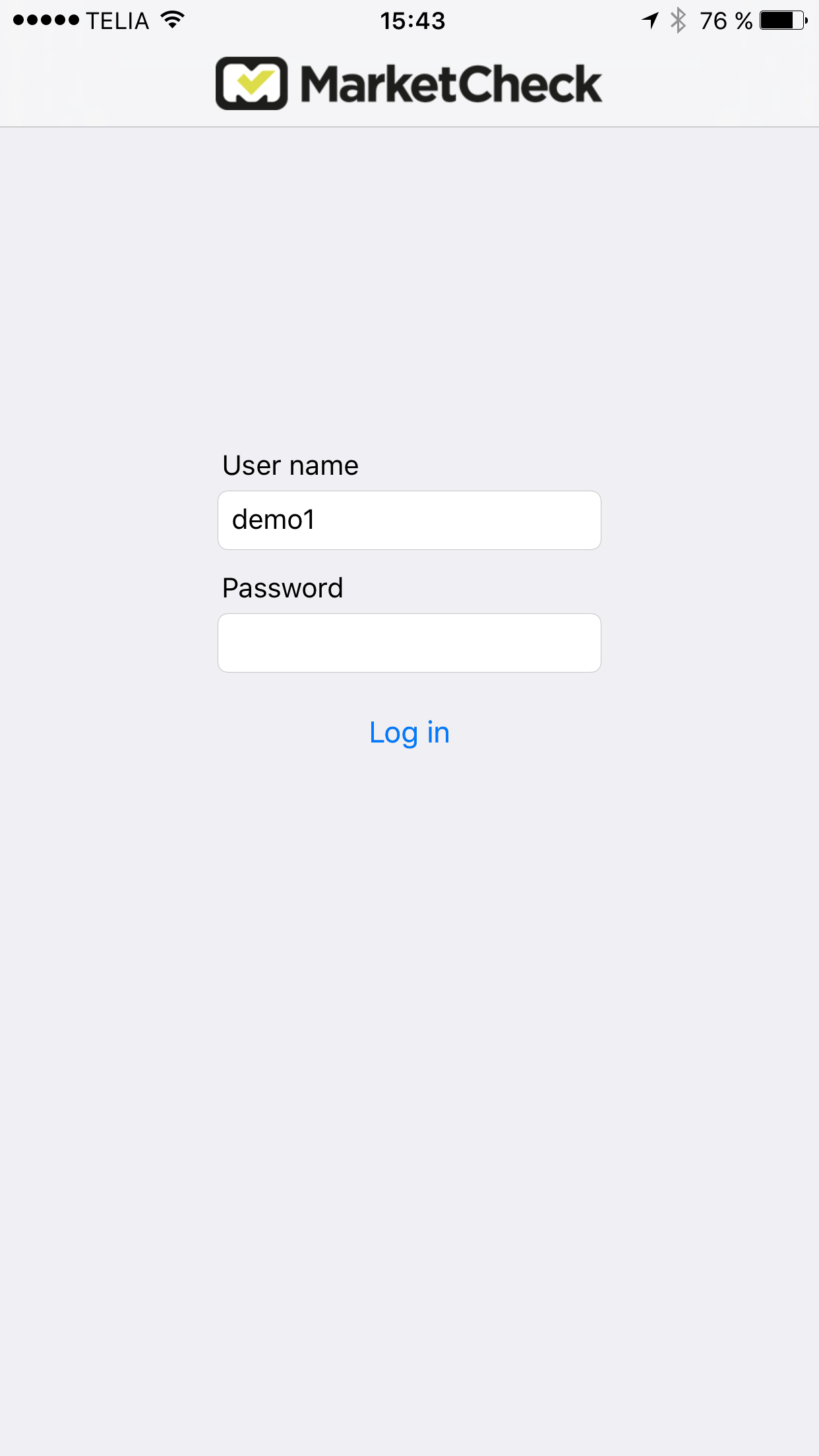
2. Log in with User Name and Password.
Step 2.
- Create a new checklist: Click on the text to create a new check round.
- Incomplete Checklists; all the check rounds you have intiated are here. Click here to either continue, or delete your round.
- Ready to send; here are all the rounds you have made, send them when you are connected.
- Update data; make a habit of updating data before each round, when you are connected. Then you will always get the latest changes.

Step 3.
- Choose the place you are going to visit.
- Choose which checklist you are going to make.

Step 4.
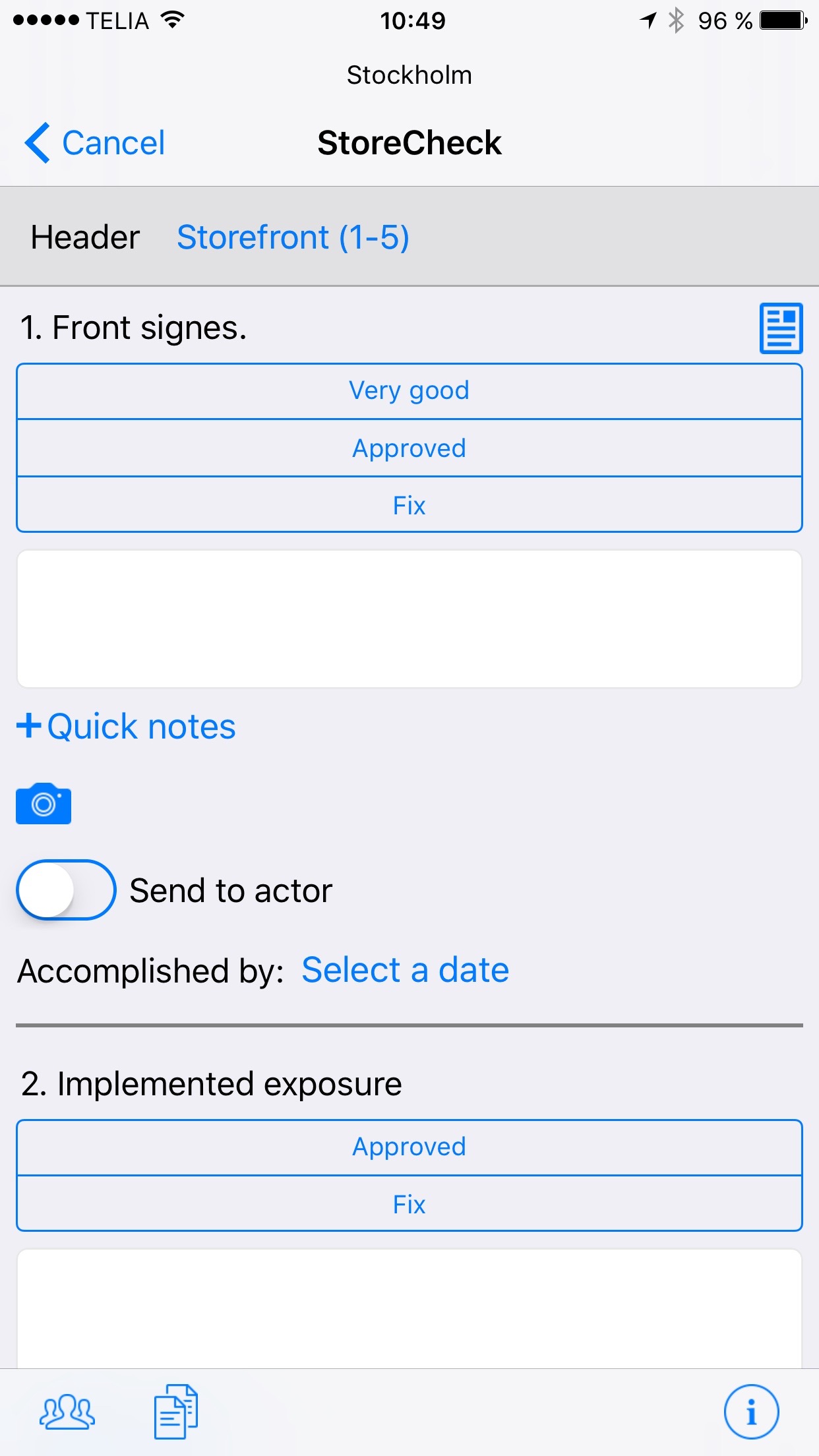
- Under Header you choose which section you are going to check. Click the blue text to select the section.
- Response options
- Text box, where you can write free text.
- Quick notes: if you have added this, then there are already texts that you can use.
- Take one or more photos.
- Send to player. The button lights up if the checkpoint is to go to the person responsible.
- Document symbol to the right. Here you find pdf-files per check point.
- Select due date per check point. There is a option to add a dead line to each check point.
Step 5.
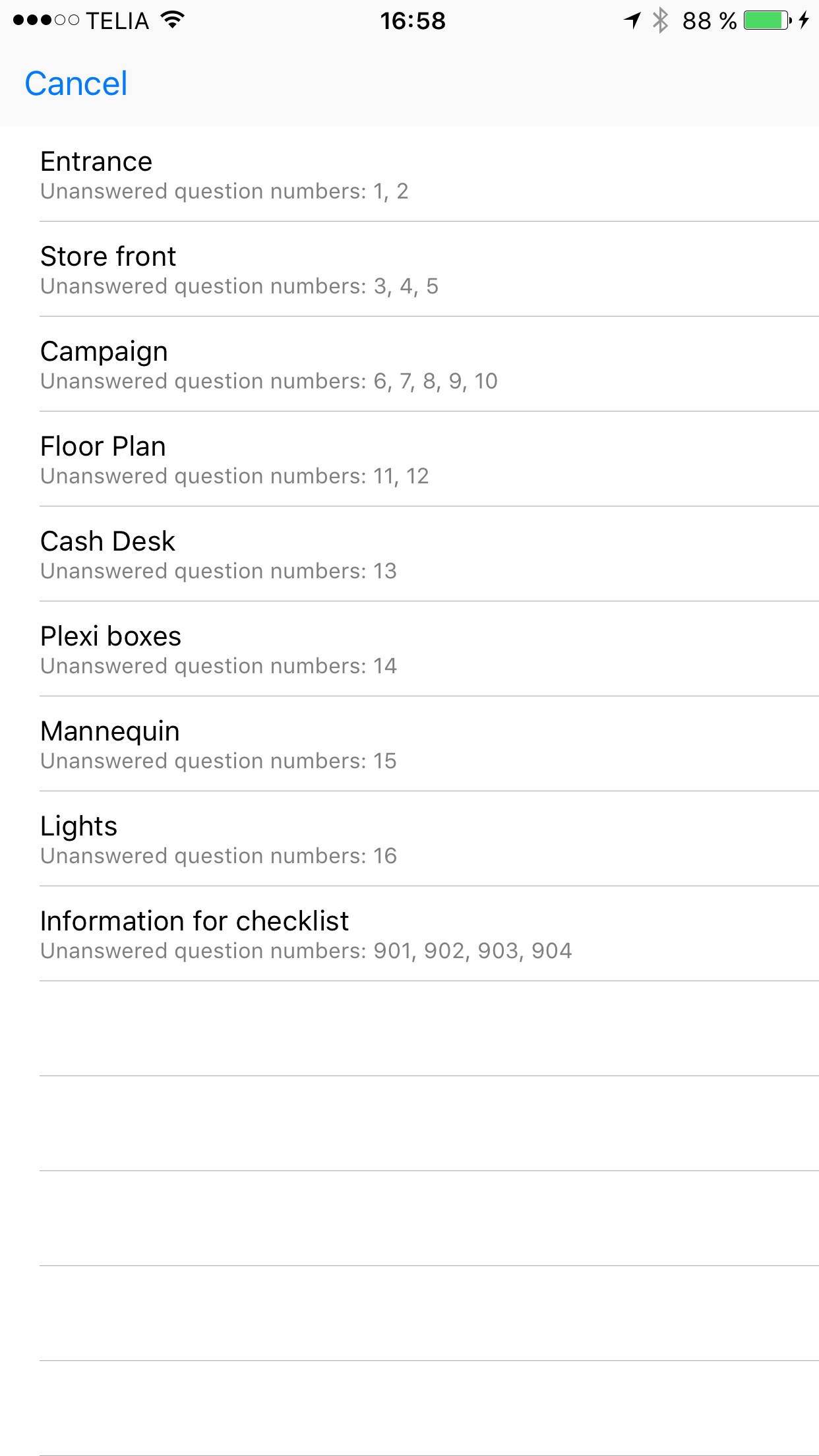
- The different sections/headings you have under the checklist are shown here.
- The figures indicate how many points you have left to respond to.
Step 6.
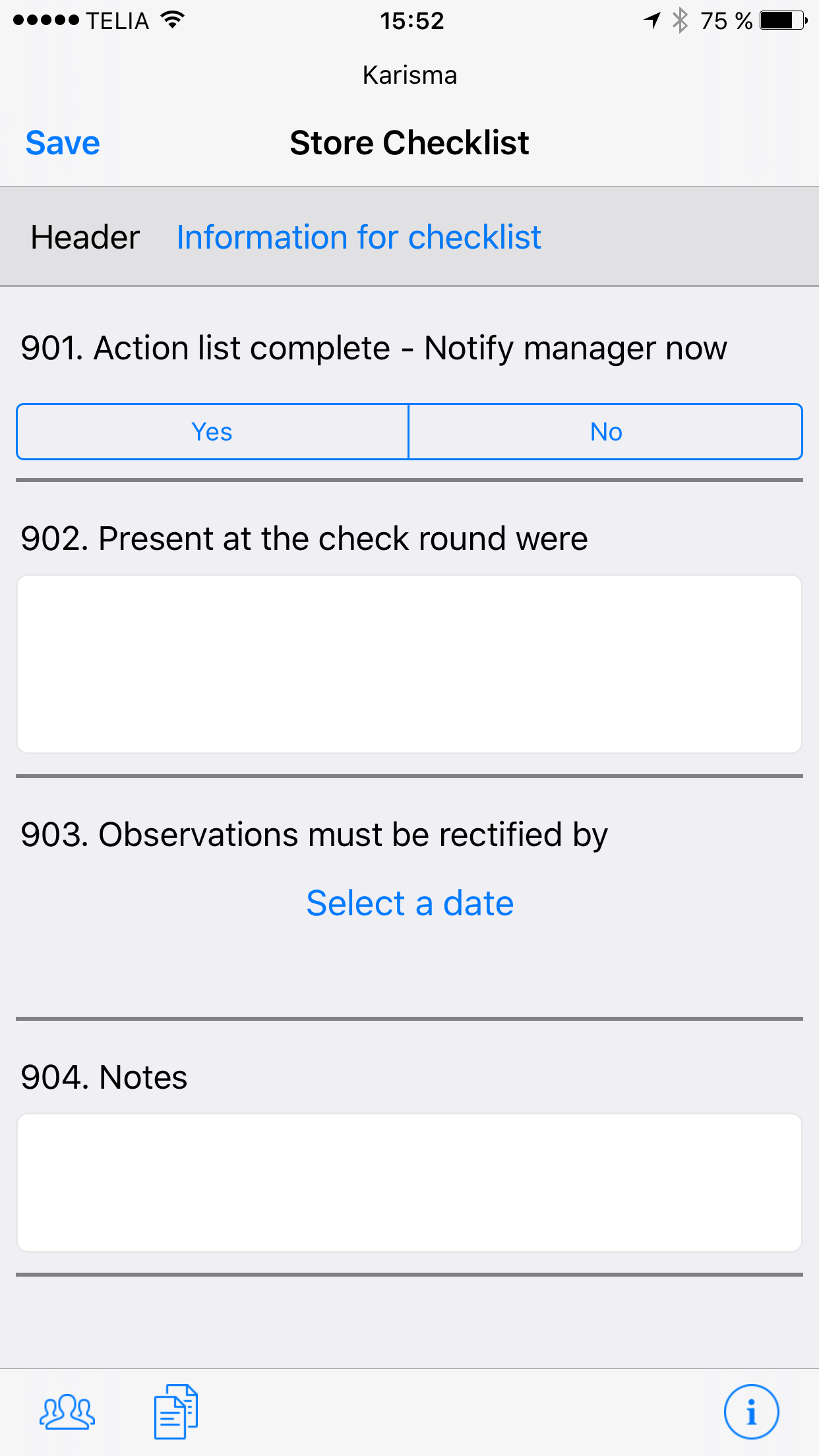
- The last section is called Information for checklist. You fill it in.
- You can write down whether you have done the round with someone else. You never need to write your own name, it’s included from the log in.
- You select a final date, when the comments you have made should be ready. We only have one date for the whole checklist.
- In Notes you can add a general comment on the round.
- List of actions ready – notify player now. You can decide here if the email to the person responsible is to be sent immediately, or whether you want to edit the checklist and send it later.
Step 7.
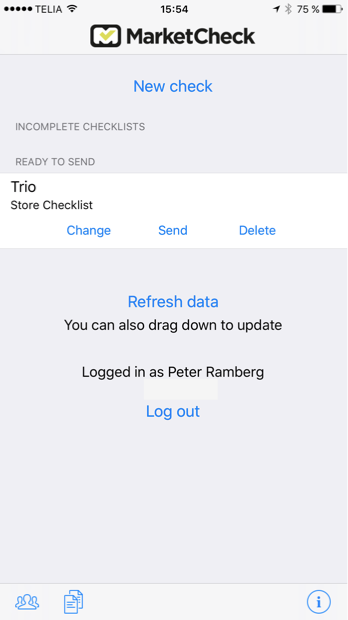
- When you have done the round and clicked Save, you arrive at the first page and your round is placed under Ready to send.
- If you click on the actual round you get three options; Change, Send or Delete.
- When it is sent you receive a confirmation.
Other
At the bottom of the app there are three symbols.
- Manage users. Here you can add a new user in the store, if they were not in the system before.
- Information. Concise information on the app.
- Document. This is where you can add different types of PDFs to help with check rounds, e.g. planograms, manuals and exposure plans etc.
Remember!
- You don’t need to log out from the app. The only time you do is when admin has added new documents, and then you receive information on this.
- Make a habit of updating data before you do a round, it only takes a few seconds. This means you always get the latest changes made in your check round.
Input in Android
Step 1
1. Download the app from Play Store; MarketCheck, checklists
2. Log in with User Name and Password.

Step 2.
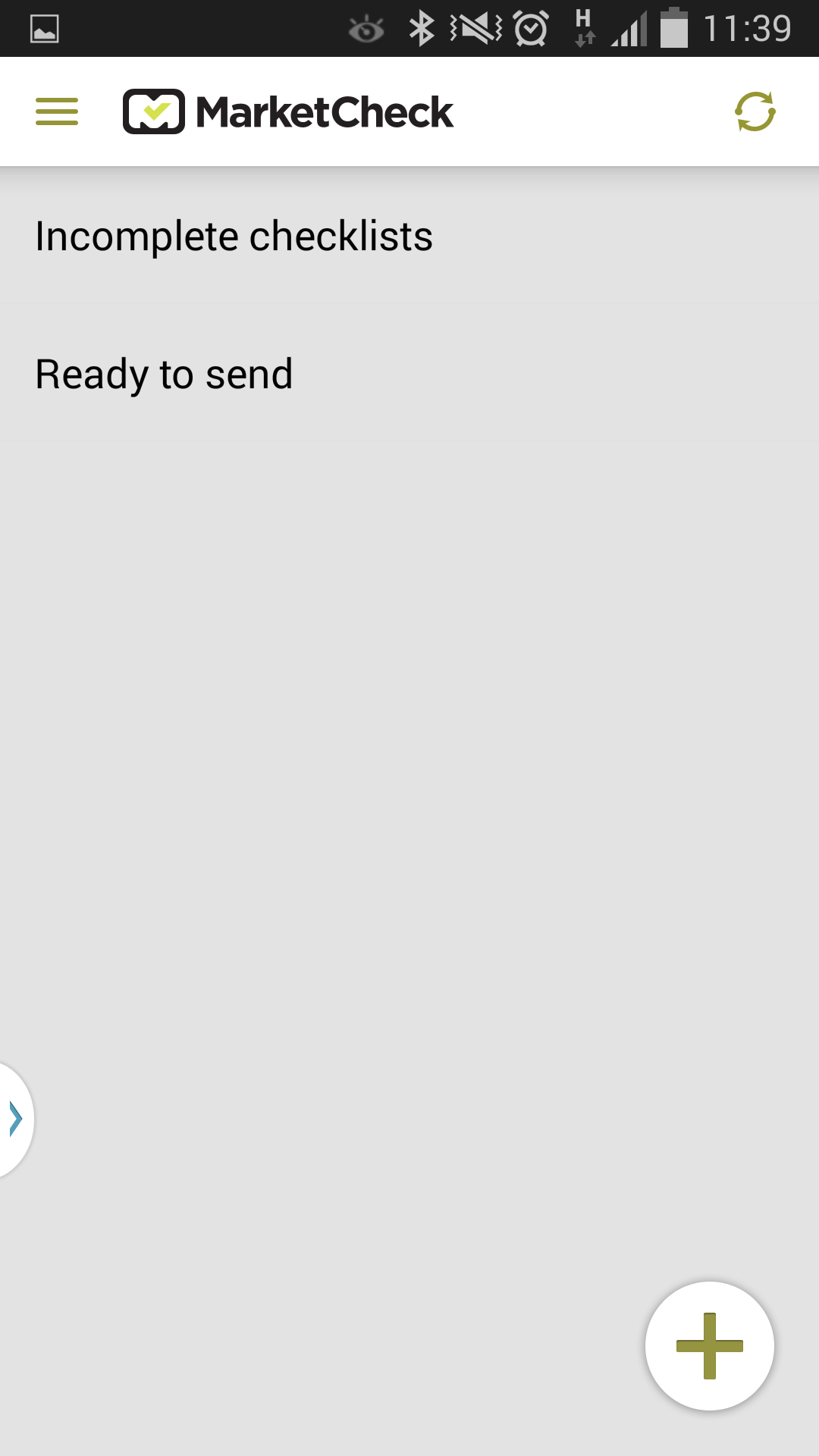
1. Create a new checklist: Click on plus (+) to create a new round of checks
2. Incomplete Checklists; all the check rounds you have intiated are here. Click here to either continue, or delete your round.
3. Ready to send; here are all the rounds you have made, send them when you are connected.
4. Update data; make a habit of updating data before each round, when you are connected. Then you will always get the latest changes. Click the ring, or pull down the screen to update.
Step 3.
Menu page. To get there, select in the menu option or pull from left to right edge.
1. Manage players. Here you can add a new player in the store, if they were not in the system before.
2. Information. Concise information on the app.
3. Document. This is where you can add different types of PDFs to help with check rounds, e.g. planograms, manuals and exposure plans etc.

Step 4.
- Choose the place you are going to visit.
- Choose which checklist you are going to make.

Step 5.
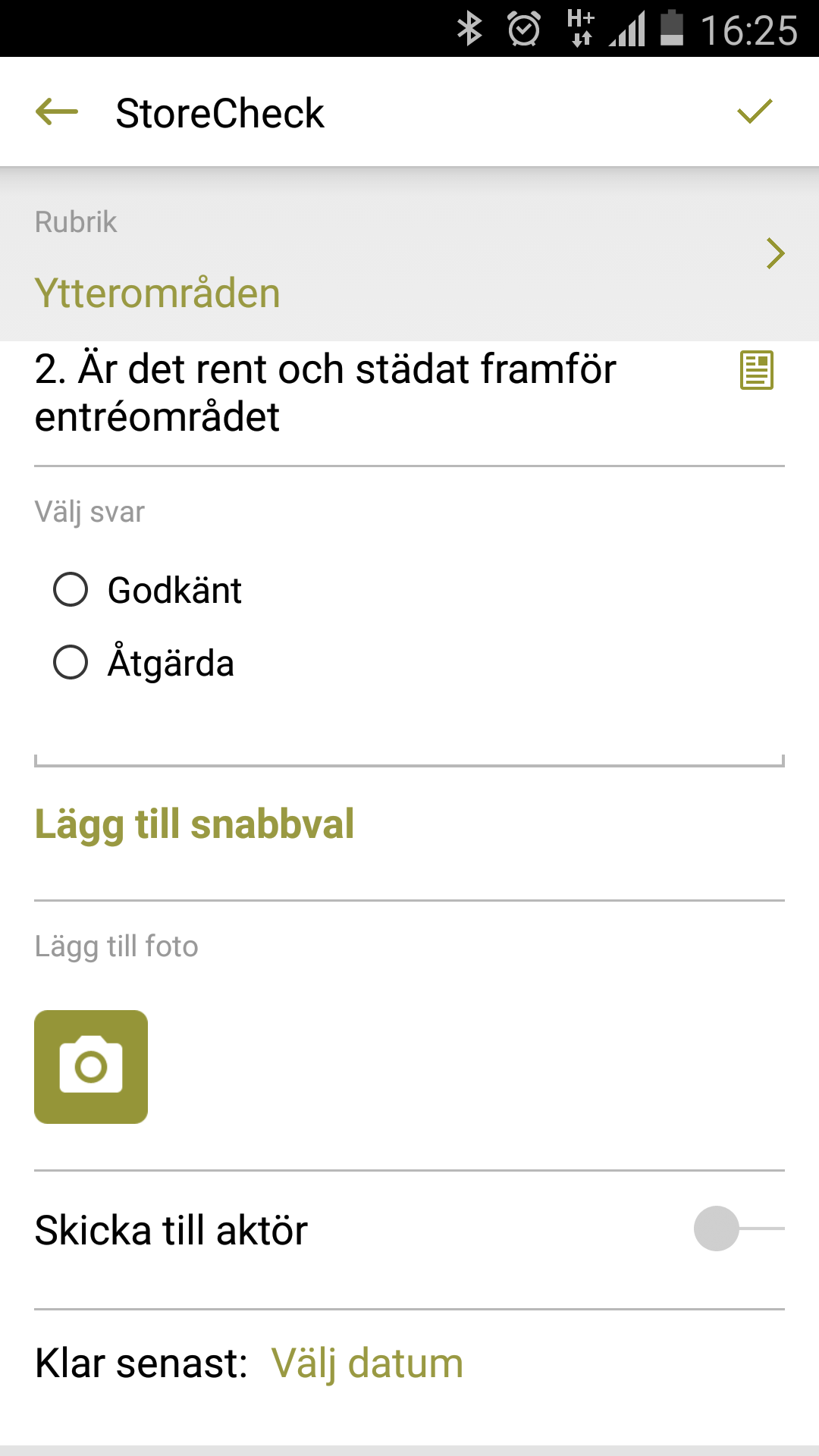
- Under Header you choose which section you are going to check. Click the green text to select the section
- Response options
- Text box, where you can write free text.
- Add Quick notes: if you have added this, then there are already texts that you can use.
- CameraTake one or more photos.
- Send to player. The button lights up if the checkpoint is to go to the person responsible.
- Document symbol to the right. Here you find pdf-files per check point.
- Select due date per check point. There is a option to add a dead line to each check point.
Step 6.
- The different sections/headings you have under the checklist are shown here.
- The figures indicate how many points you have left to respond to.
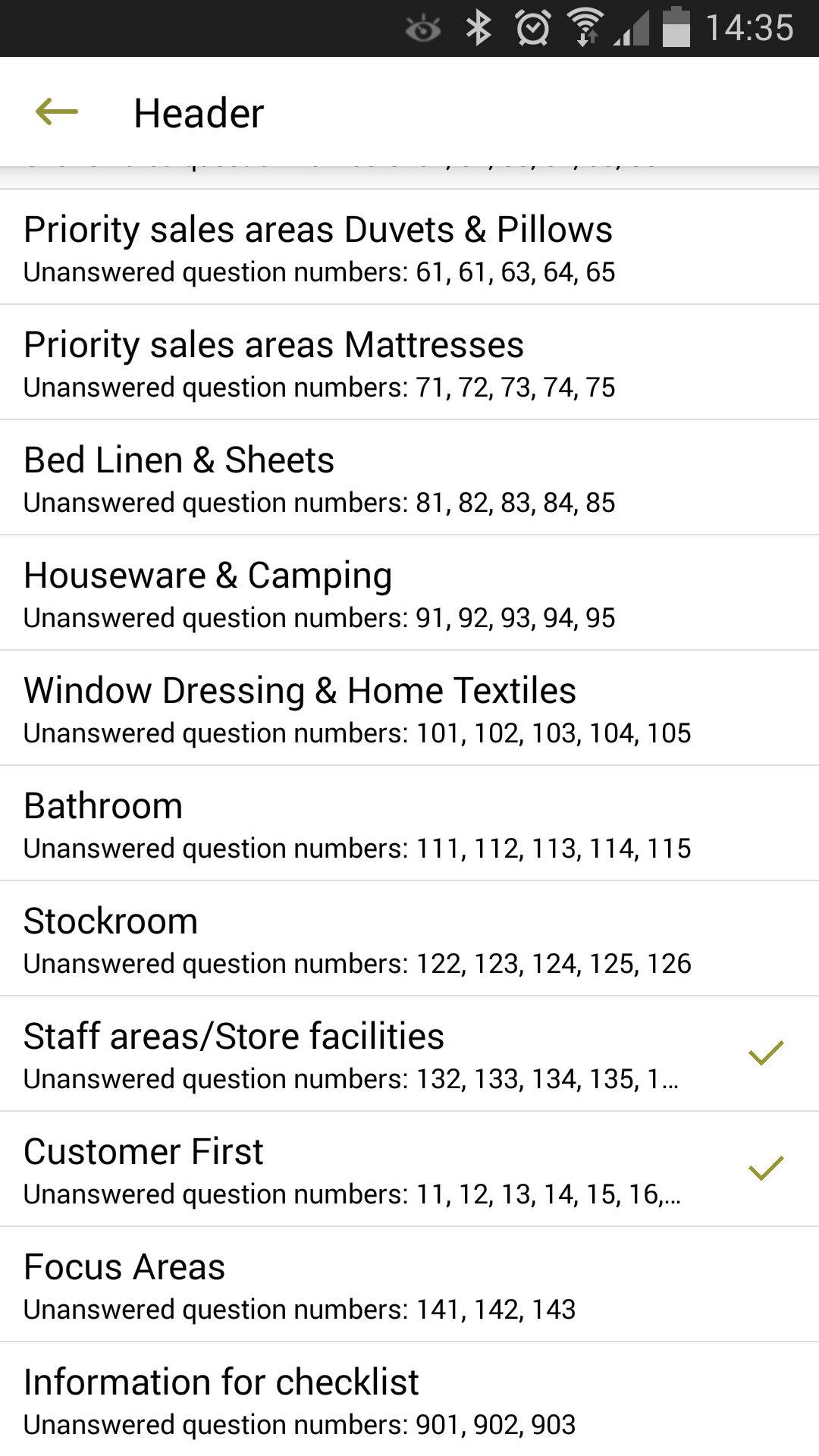
Step 7.
- The last section is called Information for checklist. You fill it in.
- You can write down whether you have done the round with someone else. You never need to write your own name, it’s included from the log in.
- You select a final date, when the comments you have made should be ready. We only have one date for the whole checklist.
- In Notes you can add a general comment on the round.
- Email actions to the person responsible. You can decide here if the email to the person responsible is to be sent immediately, or whether you want to edit the checklist and send it later.
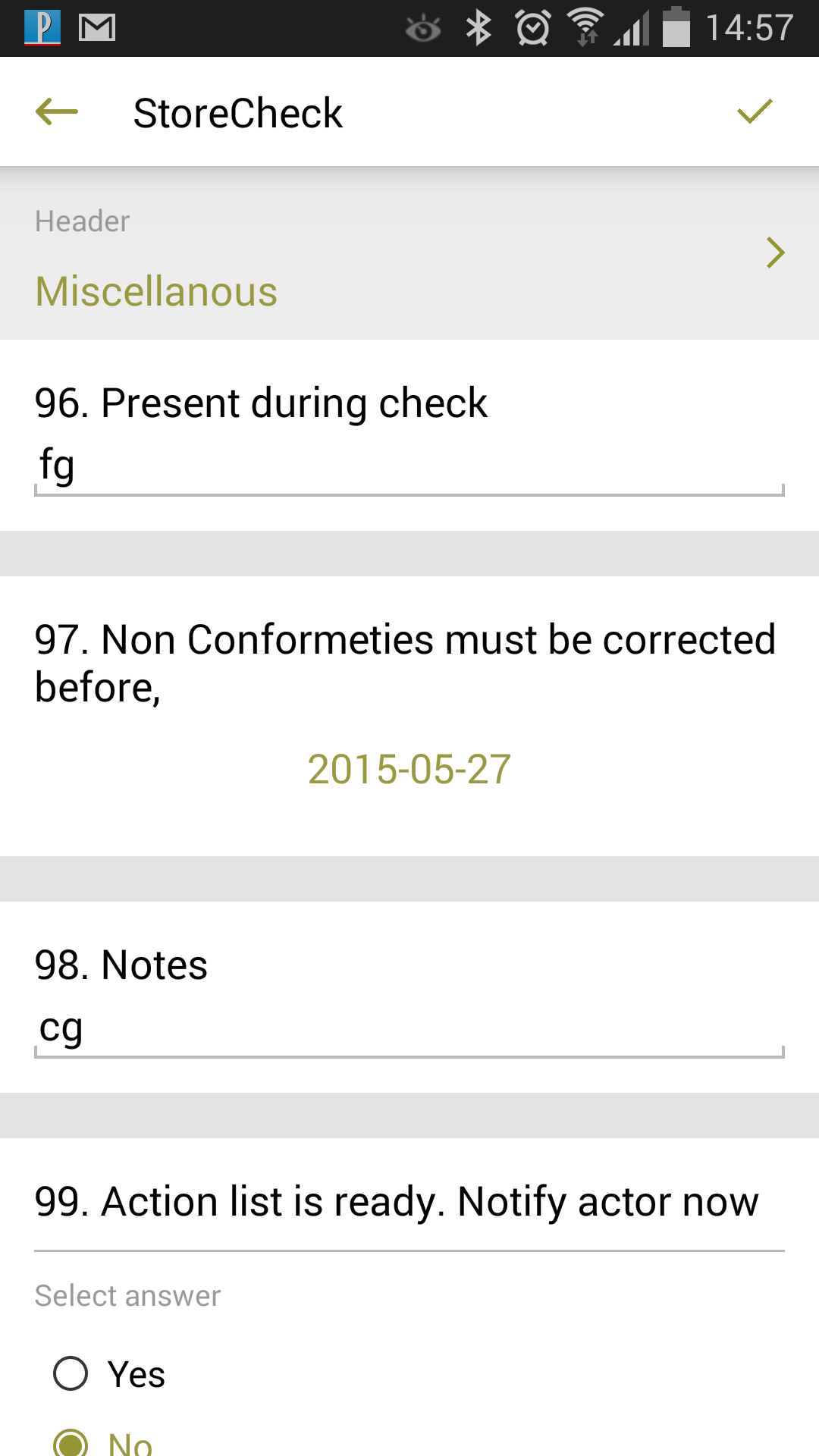
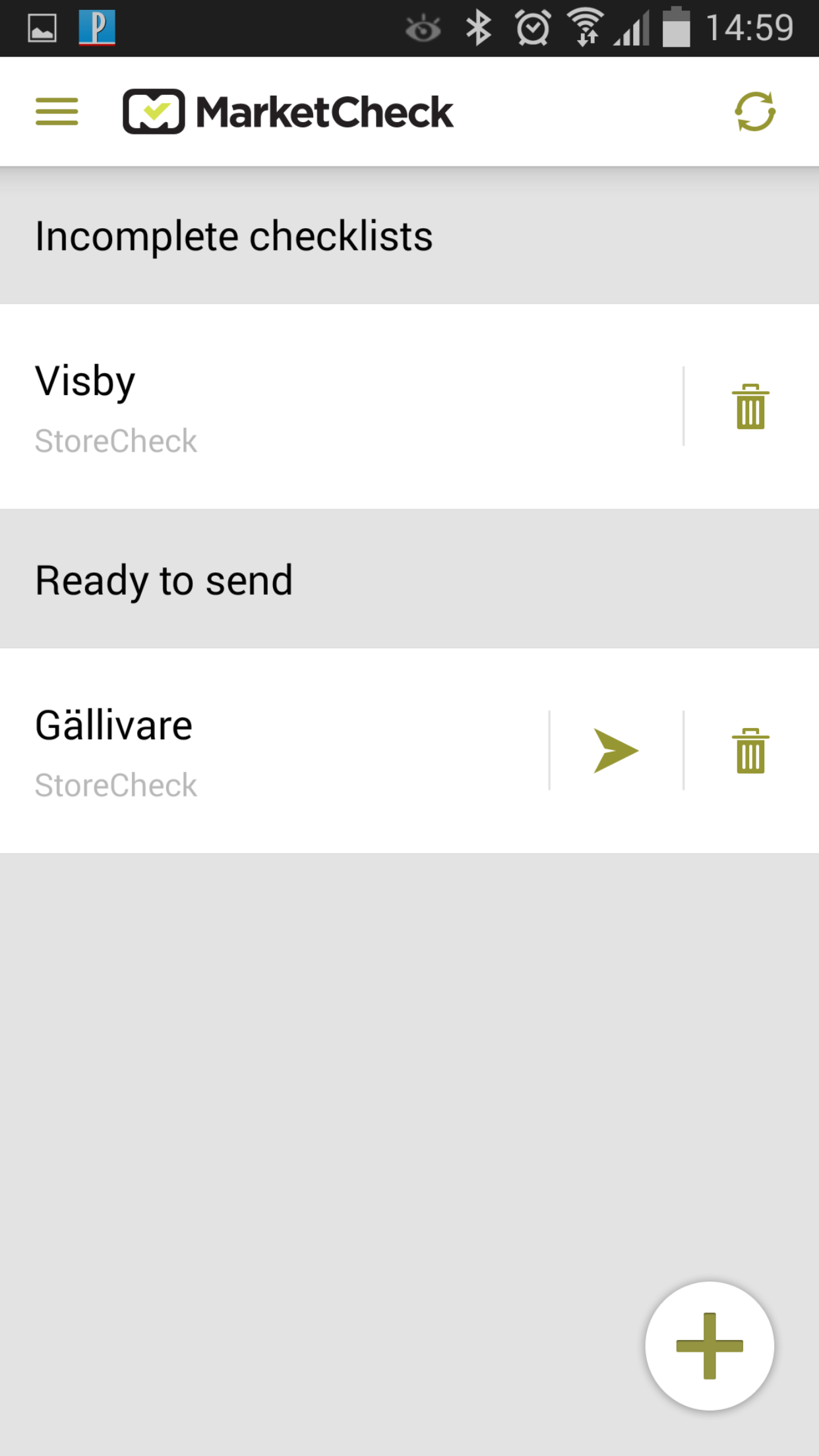
Ready to send
- When you have done the round and clicked Save, you arrive at the first page and your round is placed under Ready to send.
- If you click on the name you can make changes in the checklist, if you click on the arrow it is sent, and if you click on the wastebasket the check round is deleted.
- When it is sent you receive a confirmation.
Remember:
- You don’t need to log out from the app. The only time you do, is when admin has added new documents, and then you receive information on this.
- Make a habit of updating data before you do a round, it only takes a few seconds. This means you always get the latest changes made in your check round.
Archive
Archive
The PDF archive of all the check rounds can be found via an icon on the desktop, or under My MarketCheck.
You can search via time periods, places and checklists.

Action lists/To-do-lists
1. You get an email
When action is taken during a check round and put into the report, an email is sent to you as the manager.
2. Click on the link in the mail
There is a link in the email. Click on it to go to the website. Your logon details are also included in the email, if you don’t want to go via the link.
The website and your log in can be found under www.marketcheck.se
On the website you will see the icon: To-do-list. (The number indicates how many actions you have.)
To-do-list
The To-do-list shows all the actions. The ones that have not been done are in red. When you have done what has to be done, close it by clicking Close action whereby it goes green. If you have initiated an action, e.g. ordered something, it will be yellow.
You can choose between players, status of actions, and during which period you want to look at the actions.
To print, make a selection and create a PDF to print out.

How to comment on images
Step 1.
Select images to comment on in the image archive. You will find this under the Reports menu.
Go through the image material for the actual checklist and take out the images you want to comment on.
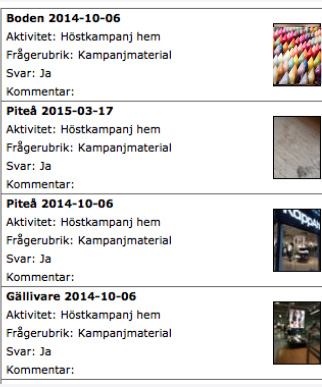
Step 2.
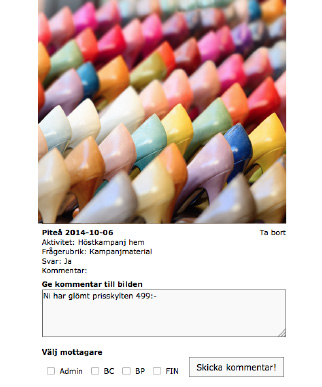
Click up the images and write your comments.
You can choose who or which functions/staff are going to receive the images. Most often it’s the store that gets back an image with comments.
Click on Send comments. Those you select receive a mail with a link.
Step 3.
The persons responsible receive your comments.
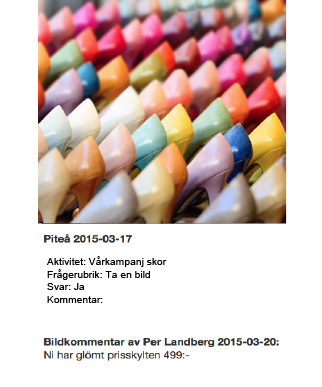
The person responsible receives an email with a link to the commented images and clicks up them.
All the commented images can be found under the Image comments icon.
You can always keep a check on the images, because they are marked with the place and date.
Looking at reports
Step 1.
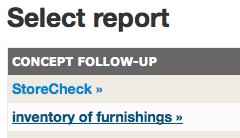
- Go to Reports
- Select report
Step 2.
Select what you want to see in the Report menu
Key performance indicators
Overall for your stores, the entire region or store.Checkpoints list
The entire checklist and index per question.Place ranking
How the stores are ranked; overall or per category/value.Images
Search for images per store or checkpointAction report
This is where you see how the stores have handled your commentsQuestion/answer
Used primarily for inventory checklists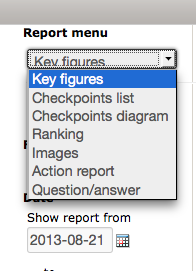
Step 3.
Question headers
The “geographic” headers in the checklist are shown in the KPIsQuestion groups
Your values are shown in the KPIsDate
Search between different datesHeader/Groups
This is where you search for headers and valuesUnits
Here you can choose stores and regionsShow selection
When you have made a section you must Show selection to see the result. (Does not apply to the top scroll bar, KPI etc.)
Step 4.
Key performance indicators
Choose between:
Question headers
Question groupsChoose also:
Periodicity
Header/Groups
Units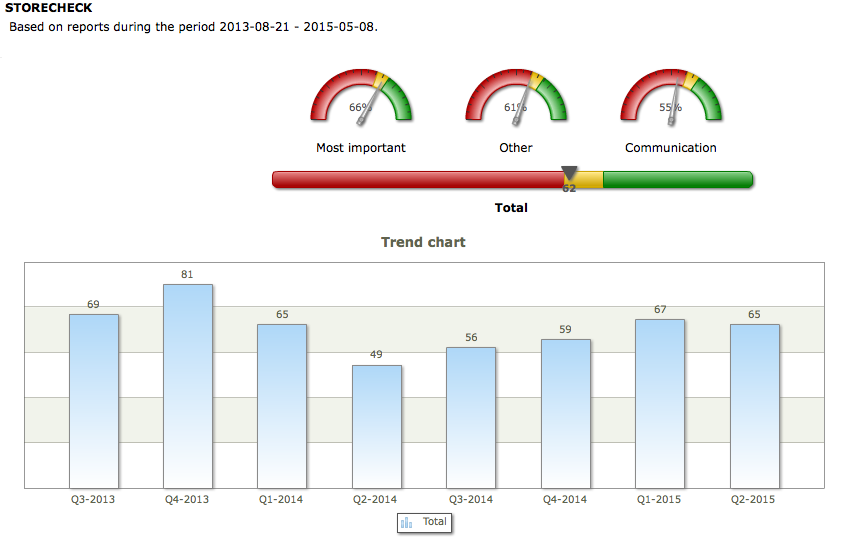
Step 5.
Checkpoints list
Here you can see the whole checklist and the chain/region/store.

Step 6.
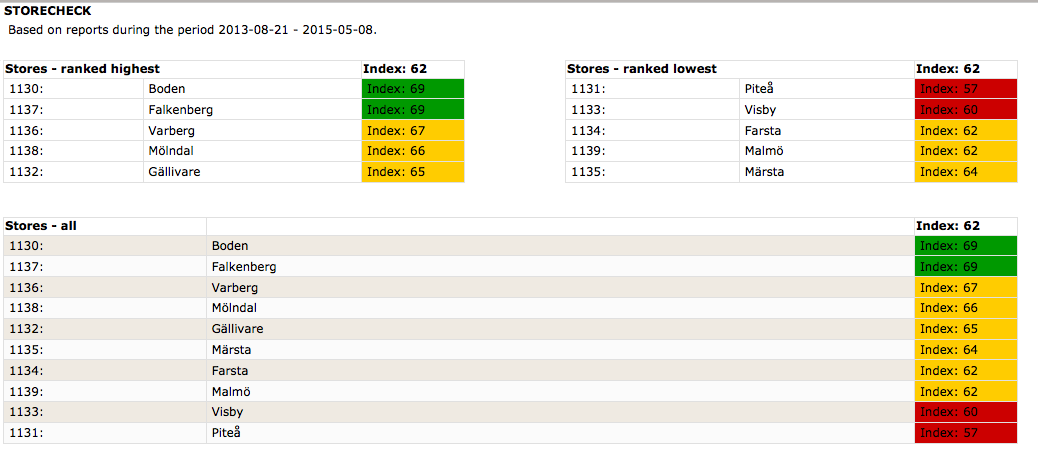
Place ranking
Here you can see the chain/region/store and their place in terms of the whole checklist and per value.
You choose what you want to see under Headers/groups and Units.
Step 7.
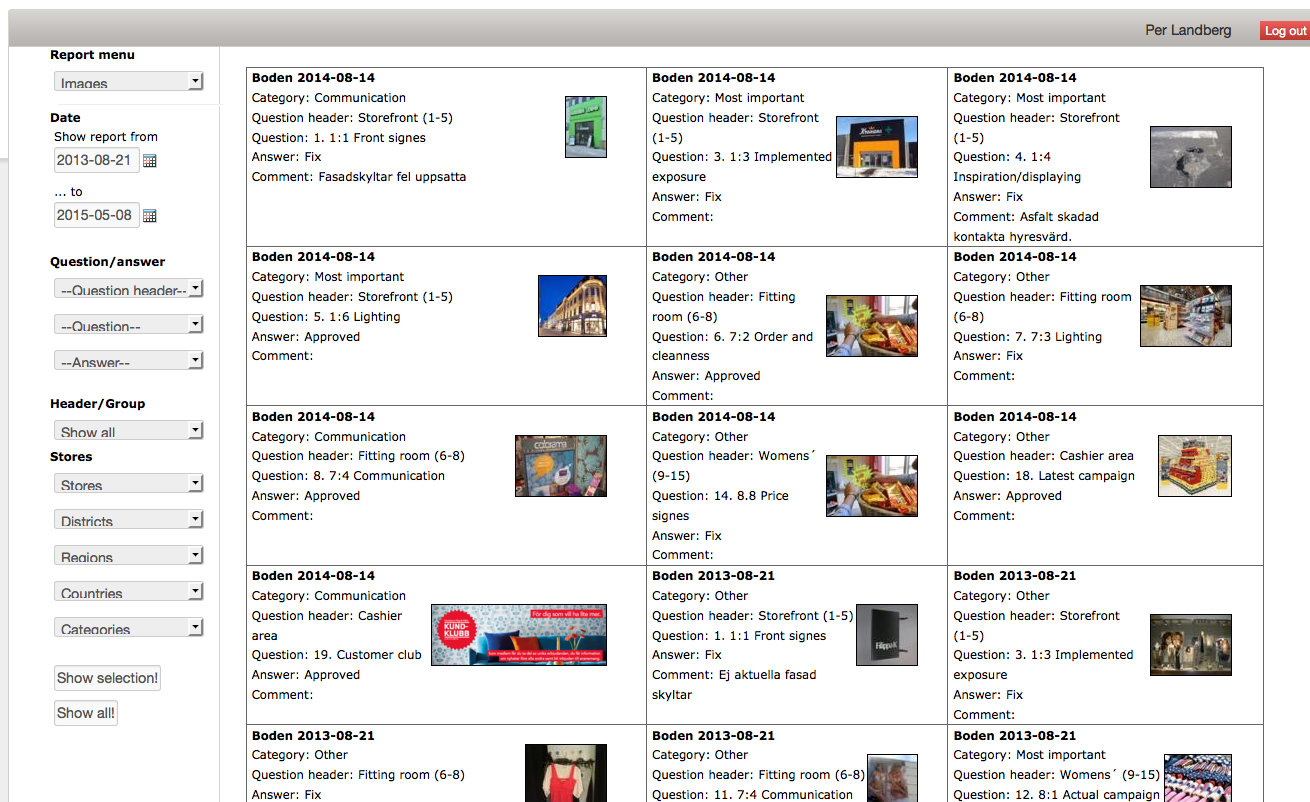
Images
Under Question/answer you can select the images you want to see.
You can also select Headings/Groups and units.
Step 8.
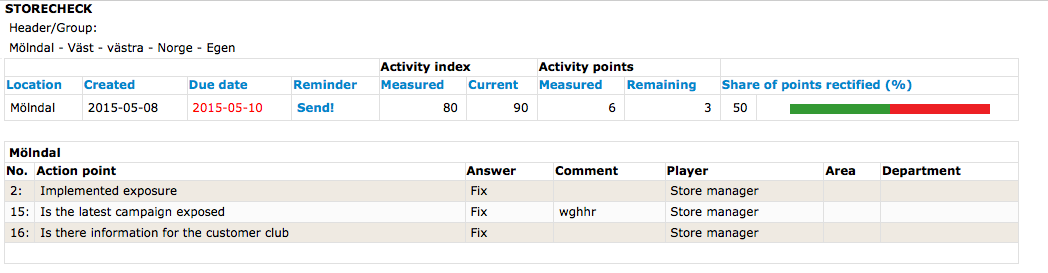
Action report
Here you can follow how the stores take action in relation to your comments. Red date indicates that the time limit has run out. You can choose to send a reminder manually, or set it as automatic.
If you select a store you also see which points they still have to act on.
Add user
Steg 1
Lorem ipsum

Better overview of the chain
All check rounds automatically generate PDF files and “live reports” where you can see trends, and benchmark stores with each other etc.

Create action
All actions from check rounds automatically end up on the right table and you can also follow up that the actions were carried out.

Improve concensus
The checklists become something that everyone can use and base their actions on. You get a concensus that highlights the issues considered in the checklists.
More time left over
The checks go at least twice as fast with MarketCheck. You save time by “automating”, avoid all that back-office work, and can focus on important sales and leadership issues.